 ZH
ZH  EN
EN  FR
FR  ES
ES  KO
KO  PT
PT  AR
AR  FA
FA  RU
RU  NL
NL  MS
MS  VI
VI  PH
PH  TH
TH  ID
ID 


MetaTrader is one of the most well-known names in the forex trading world. Both MT4 and MT5 are offered by brokerages globally, and millions of traders look at one of these platforms nearly every day of their lives. However, for a MetaTrader beginner, there’s no denying that, like any trading tool, they appear borderline hostile when you enter them.
Tonnes of strict language and unfamiliar tools, a somewhat dated look, and the pure breadth of options all contribute to this. But you don’t need to be worried. You won’t be using all of MetaTrader’s options on your first day, or even week. In fact, MetaTrader has so many features that even the most advanced traders never touch some of them.
So, if you’re a beginner trying to get your bearings, don’t worry about taking it slow. In this article, we will outline the absolute first steps you should take in MetaTrader, which will help you slowly learn the platform and build your confidence.
Step 1: Open an Account as a MetaTrader Beginner
Your first step, oddly, isn’t on MetaTrader at all. To use MetaTrader, especially as a MetaTrader beginner, you’ll need an account—something an online brokerage like us at IronFX will gladly provide. There are two types of accounts, live and demo. The former requires you to deposit and trade with real money, and the latter is free, providing you with virtual funds in a simulated trading environment.
If you’re someone completely unfamiliar with MetaTrader, a demo account is a safe choice. It lets you trade without risking any money (of course, this means you can’t earn any either), and lets you freely explore the platform.
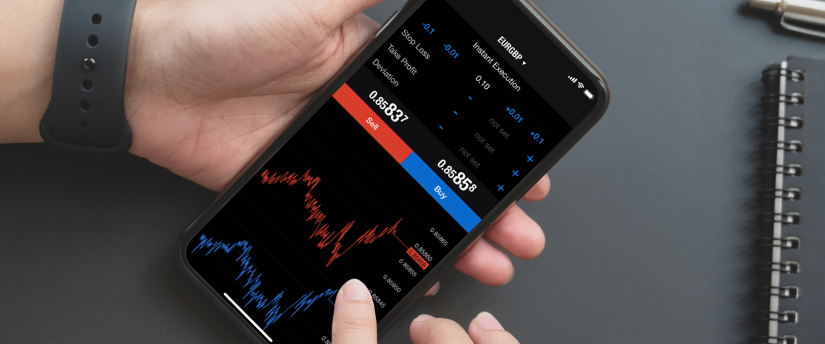
After you get your account, your broker of choice will provide you with your MetaTrader credentials. You will be able to log in to the platform and start your MetaTrader journey.
Step 2: Choose Your MetaTrader Version
With most brokerages, you’ll have three options for MetaTrader: the terminal (downloadable version for computers), WebTrader (for browsers), and Mobile (適用於 Android 和 iOS).
This article will focus on the terminal, because that’s what most traders use and consider the baseline. However, the steps for the WebTrader are nearly identical. Mobile, unfortunately, has a different UI, and we are unable to cover both in this article, but it is more streamlined, so traders who opt to trade on their phones may find the experience more intuitive.
If you choose the terminal, of course, you’ll have to download it and go through the installation process. It’s pretty much the same as installing any other program on your computer. If you’re a MetaTrader beginner, installing MT on an SSD drive is a good idea, as it will allow the platform to run faster.
Step 3: Learn Key UI Elements
Now that you’ve installed and opened MetaTrader, it hits you with that hostile interface that we’ve already mentioned. Let’s break it apart and make it less intimidating.
The MetaTrader interface is segmented into five major parts:
- Market Watch – On the left of your screen, consists of trading instruments and real-time prices
- Charts – In the middle, shows charts which display price data for your selected instruments
- Toolbar – At the top, contains various tools and options
- Terminal – At the bottom, has your trade history and open positions
- Navigator – On the left, below the Market Watch window with more advanced options, you can ignore it for now
All of these tabs can be dragged, resized, and customised, so feel free to modify your layout into something that makes sense to you.

Step 4: Open a Chart and Learn Basic Charting Tools
Now that we have a better grasp of the interface, let’s simulate a basic trade. If you’re a MetaTrader beginner, start by navigating to your Market Watch tab and finding an asset you like. Right-click it and press Chart Window.
The chart for your selected instrument should now be on the screen. Let’s take the time to explore some basic chart options MetaTrader has to offer.
First, chart types. The two most commonly used are line and candlestick charts, with the former providing a cleaner overview and the latter providing more detailed information. You can locate both of these options in the Toolbar. They are little icons that look like a line and a candlestick. Try clicking on your chart and clicking these icons.
Next, let’s look into 时间表. These dictate how long each data point in your chart will be. If your timeframe is one minute, then each data point will be one minute long. Timeframes can also be located in the Toolbar, near the end. Press the M1 button to see how your chart looks with a one-minute timeframe, and then the H1 button to see what it looks like with a one-hour timeframe.
Finally, let’s navigate your chart a bit. If you’re a MetaTrader beginner, you can zoom in or out using the + and – keys on your keyboard, or by holding Ctrl and scrolling your mouse wheel up or down. To look at past price data, use the left arrow key or click and drag your chart to the right.
Your chart may snap back to the current price, and that’s because you have Auto-Scroll on. If you don’t want that option, disable it in the Toolbar by pressing the icon that looks like a chart with a play button on it.
Step 5: Make Your First Trade as a MetaTrader Beginner
Our last step for this tutorial will involve you opening and closing your first position. Note that we are assuming you are on a demo account and there’s no risk to your own money. If you are on a live account, don’t follow these steps, or else you are putting your capital at risk.
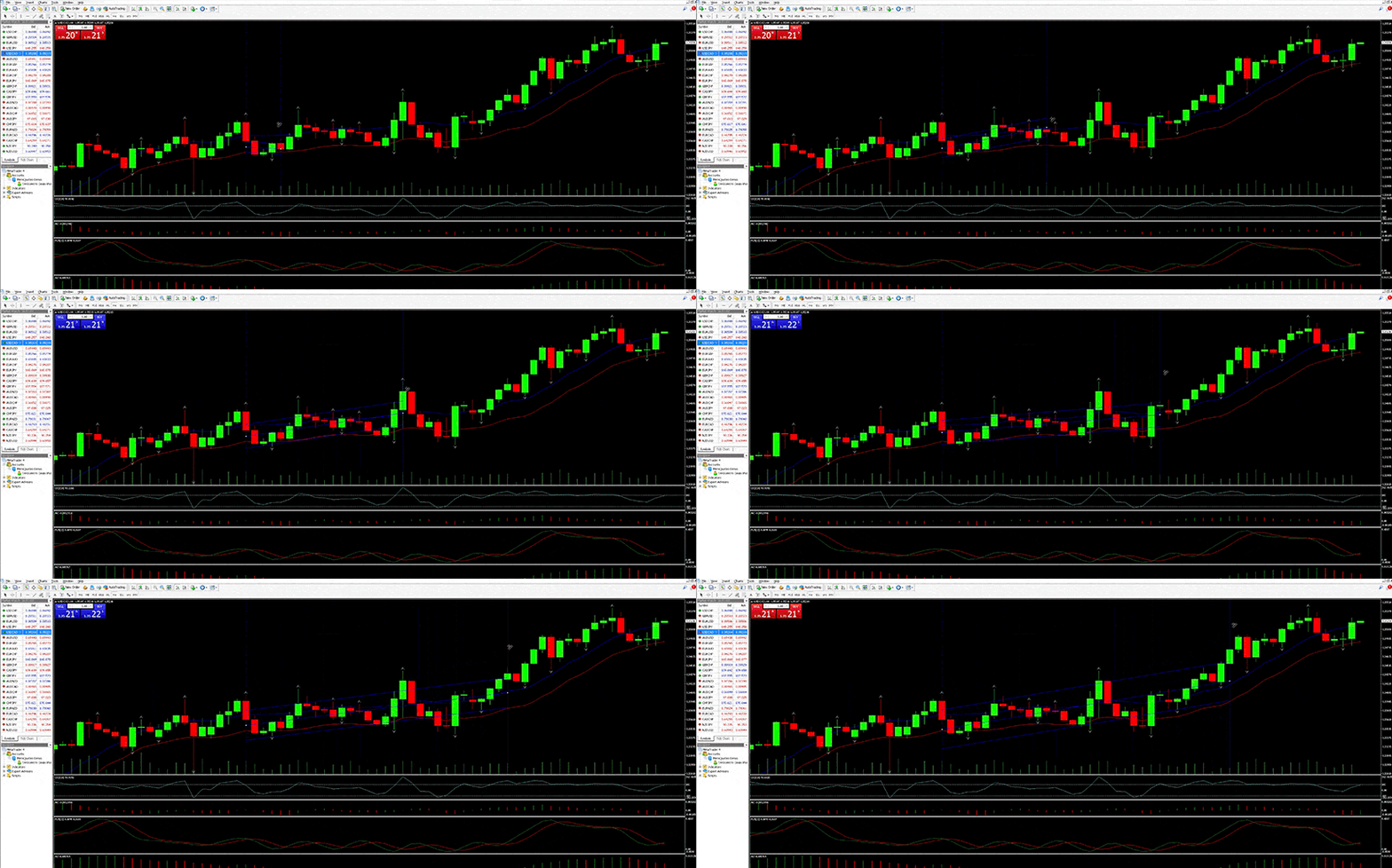
Opening a position is simple, and there are multiple ways to do it. For convenience, let’s do it from the chart we just opened earlier. Simply right-click the chart, find 交易 in the menu, hover it, and select New Order. This will open up the Order Window.
There, you’ll see your selected asset, the volume which determines your position size, options to set a stop loss and take profit, and choose your order type. These features are extremely useful—if not essential—but since this isn’t a trading tutorial, and you’re here as a MetaTrader beginner, let’s just focus on placing an order for now.
You’ll see the Buy by Market 和 Sell by Market buttons. The former means your trade is positive if the price goes up, and with the latter, you’re betting on the price going down. For now, just go with your gut and press either.
You’ve opened your first position! But a trade isn’t complete until you close it. To do that, navigate to your Terminal at the bottom of the screen. In it, you’ll see a tab that says Trade. If it’s not already open, open it.
There, you’ll see your position. Right-click it and select Close Order. This will once again open the Order Window, but this time, you’ll see a new button below buy and sell, which says Close and then some additional information about your trade. Press that button, and you’ll have closed your trade. Press OK to exit the window.
You’ve Grasped The Essentials
It wasn’t that hard, was it? You’ve officially learned the basics of MetaTrader. There’s still a long way to go and many features to explore, but this article was here to prove that MetaTrader may not be as daunting as it first appears. If you are a MetaTrader beginner, continue learning, take it bit by bit, and you’ll be able to navigate the platform like a pro much more quickly than you realise.
免责声明: 本信息不被视为投资建议或投资推荐, 而是一种营销传播. IronFX 对本信息中引用或超链接的第三方提供的任何数据或信息概不负责.


 JA
JA 





